
在 Windows 上安裝 fnm
fnm 提供了多種在 Windows 上安裝的方式,本指南將幫助你選擇最適合的方法。
安裝方式
使用 winget(推薦)
winget 是 Windows 11 和 Windows 10(1809+)內置的包管理器:
powershell
winget install Schniz.fnm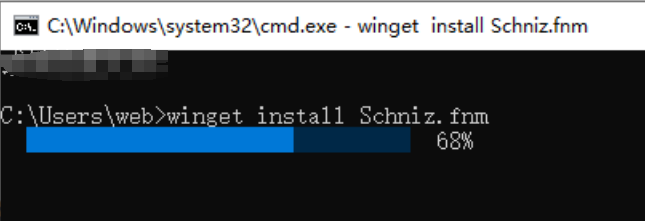
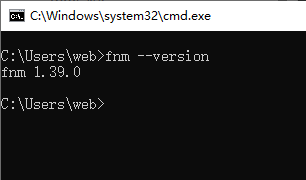
使用 Scoop
Scoop 是 Windows 上流行的命令行包管理器:
powershell
# 安裝 Scoop(如果尚未安裝)
Set-ExecutionPolicy RemoteSigned -Scope CurrentUser
irm get.scoop.sh | iex

# 安裝 fnm
scoop install fnm
使用 Chocolatey
Chocolatey 是 Windows 上廣泛使用的包管理器:
powershell
# 安裝 Chocolatey(如果尚未安裝)
Set-ExecutionPolicy Bypass -Scope Process -Force
[System.Net.ServicePointManager]::SecurityProtocol = [System.Net.ServicePointManager]::SecurityProtocol -bor 3072
iex ((New-Object System.Net.WebClient).DownloadString('https://community.chocolatey.org/install.ps1'))

# 安裝 fnm
choco install fnm
使用安裝腳本
在 Git Bash 或 WSL 中:
bash
curl -fsSL https://fnm.vercel.app/install | bash手動下載
- 訪問 fnm Releases 頁面
- 下載
fnm-windows.zip - 解壓到目標目錄
- 將解壓目錄添加到系統 PATH
配置 PowerShell
安裝完成後,需要配置 PowerShell 環境。
自動配置
運行以下命令將 fnm 配置添加到 PowerShell 配置文件:
powershell
# 創建配置文件(如果不存在)
if (!(Test-Path -Path $PROFILE)) {
    New-Item -ItemType File -Path $PROFILE -Force
}

# 添加 fnm 配置
Add-Content -Path $PROFILE -Value 'fnm env --use-on-cd | Out-String | Invoke-Expression'

# 重新加載配置
. $PROFILE
手動配置
- 打開 PowerShell 配置文件:
powershell
notepad $PROFILE- 添加以下內容:
powershell
fnm env --use-on-cd | Out-String | Invoke-Expression- 保存並重新加載:
powershell
. $PROFILE配置 VS Code
如果你使用 VS Code,需要配置集成終端:
- 打開設置(
Ctrl + ,) - 搜索
terminal.integrated.profiles.windows - 添加或修改 PowerShell 配置:
json
{
  "terminal.integrated.profiles.windows": {
    "PowerShell": {
      "source": "PowerShell",
      "args": ["-NoLogo"]
    }
  }
}
使用國內鏡像
在中國大陸,建議配置鏡像加速下載:
powershell
# 設置環境變量
[Environment]::SetEnvironmentVariable("FNM_NODE_DIST_MIRROR", "https://npmmirror.com/mirrors/node", "User")

# 或在 PowerShell 配置文件中添加
$env:FNM_NODE_DIST_MIRROR = "https://npmmirror.com/mirrors/node"
fnm env --use-on-cd | Out-String | Invoke-Expression
驗證安裝
powershell
# 檢查 fnm 版本
fnm --version

# 安裝 Node.js
fnm install --lts

# 驗證 Node.js
node --version
npm --version
Shell 補全
啟用 PowerShell 命令補全:
powershell
# 將補全腳本添加到配置文件
fnm completions --shell powershell | Out-String | Add-Content $PROFILE

# 重新加載配置
. $PROFILE
常見問題
命令找不到
如果安裝後 fnm 命令找不到:
- 確認 fnm 已添加到 PATH
- 重新打開 PowerShell 窗口
- 檢查安裝路徑:
powershell
where.exe fnm執行策略錯誤
如果遇到執行策略錯誤:
powershell
# 允許運行腳本
Set-ExecutionPolicy RemoteSigned -Scope CurrentUser
環境變量不生效
確保 PowerShell 配置文件正確加載:
powershell
# 檢查配置文件路徑
$PROFILE

# 檢查配置文件內容
Get-Content $PROFILE

# 手動重新加載
. $PROFILE
WSL 中使用 fnm
如果你在 WSL 中使用 fnm:
bash
# 在 WSL 中安裝
curl -fsSL https://fnm.vercel.app/install | bash

# 配置 Bash
echo 'eval "$(fnm env --use-on-cd)"' >> ~/.bashrc
source ~/.bashrc
下一步
安裝完成後,你可以:
- 安裝 Node.js - 使用 fnm 安裝 Node.js
- 命令參考 - 了解所有可用命令
- 版本管理 - 學習版本管理