
Windows 에서 fnm 설치
fnm 은 Windows 에서 여러 설치 방법을 제공합니다. 이 가이드는 가장 적합한 방법을 선택하는 데 도움을 드립니다.
설치 방법
winget 사용 (권장)
winget 은 Windows 11 및 Windows 10 (1809+) 에 내장된 패키지 관리자입니다:
powershell
winget install Schniz.fnm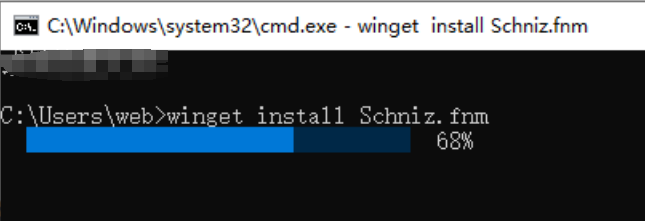
Scoop 사용
Scoop 은 Windows 에서 인기 있는 명령줄 패키지 관리자입니다:
powershell
# Scoop 설치 (설치되지 않은 경우)
Set-ExecutionPolicy RemoteSigned -Scope CurrentUser
irm get.scoop.sh | iex

# fnm 설치
scoop install fnm
Chocolatey 사용
Chocolatey 는 Windows 에서 널리 사용되는 패키지 관리자입니다:
powershell
# Chocolatey 설치 (설치되지 않은 경우)
Set-ExecutionPolicy Bypass -Scope Process -Force
[System.Net.ServicePointManager]::SecurityProtocol = [System.Net.ServicePointManager]::SecurityProtocol -bor 3072
iex ((New-Object System.Net.WebClient).DownloadString('https://community.chocolatey.org/install.ps1'))

# fnm 설치
choco install fnm
설치 스크립트 사용
Git Bash 또는 WSL 에서:
bash
curl -fsSL https://fnm.vercel.app/install | bash수동 다운로드
- fnm Releases 페이지 방문
fnm-windows.zip다운로드- 대상 디렉토리에 압축 해제
- 압축 해제한 디렉토리를 시스템 PATH 에 추가
PowerShell 구성
설치 후 PowerShell 환경을 구성해야 합니다.
자동 구성
다음 명령을 실행하여 fnm 구성을 PowerShell 프로필에 추가합니다:
powershell
# 프로필 생성 (없는 경우)
if (!(Test-Path -Path $PROFILE)) {
    New-Item -ItemType File -Path $PROFILE -Force
}

# fnm 구성 추가
Add-Content -Path $PROFILE -Value 'fnm env --use-on-cd | Out-String | Invoke-Expression'

# 구성 다시 로드
. $PROFILE
수동 구성
- PowerShell 프로필 열기:
powershell
notepad $PROFILE- 다음 내용 추가:
powershell
fnm env --use-on-cd | Out-String | Invoke-Expression- 저장 후 다시 로드:
powershell
. $PROFILEVS Code 구성
VS Code 를 사용하는 경우 통합 터미널을 구성해야 합니다:
- 설정 열기 (
Ctrl + ,) terminal.integrated.profiles.windows검색- PowerShell 구성 추가 또는 수정:
json
{
  "terminal.integrated.profiles.windows": {
    "PowerShell": {
      "source": "PowerShell",
      "args": ["-NoLogo"]
    }
  }
}
중국에서 미러 사용
중국 본토에서는 미러를 구성하여 다운로드 속도를 높이는 것이 권장됩니다:
powershell
# 환경 변수 설정
[Environment]::SetEnvironmentVariable("FNM_NODE_DIST_MIRROR", "https://npmmirror.com/mirrors/node", "User")

# 또는 PowerShell 프로필에 추가
$env:FNM_NODE_DIST_MIRROR = "https://npmmirror.com/mirrors/node"
fnm env --use-on-cd | Out-String | Invoke-Expression
설치 확인
powershell
# fnm 버전 확인
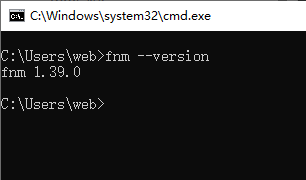
fnm --version

# Node.js 설치
fnm install --lts

# Node.js 확인
node --version
npm --version
Shell 완성
PowerShell 명령어 완성 기능을 활성화합니다:
powershell
# 프로필에 완성 스크립트 추가
fnm completions --shell powershell | Out-String | Add-Content $PROFILE

# 구성 다시 로드
. $PROFILE
일반적인 문제
Command Not Found
설치 후 fnm 명령어를 찾을 수 없는 경우:
- fnm 이 PATH 에 추가되었는지 확인
- PowerShell 창 다시 열기
- 설치 경로 확인:
powershell
where.exe fnmExecution Policy 오류
실행 정책 오류가 발생하는 경우:
powershell
# 스크립트 실행 허용
Set-ExecutionPolicy RemoteSigned -Scope CurrentUser
환경 변수가 적용되지 않음
PowerShell 프로필이 올바르게 로드되는지 확인합니다:
powershell
# 프로필 경로 확인
$PROFILE

# 프로필 내용 확인
Get-Content $PROFILE

# 수동으로 다시 로드
. $PROFILE
WSL 에서 fnm 사용
WSL 에서 fnm 을 사용하는 경우:
bash
# WSL 에서 설치
curl -fsSL https://fnm.vercel.app/install | bash

# Bash 구성
echo 'eval "$(fnm env --use-on-cd)"' >> ~/.bashrc
source ~/.bashrc
다음 단계
설치 후 다음을 수행할 수 있습니다:
- Node.js 설치 - fnm 을 사용하여 Node.js 설치
- 명령어 참조 - 사용 가능한 모든 명령어 알아보기
- 버전 관리 - 버전 관리 알아보기