
Install fnm on Windows
fnm provides multiple installation methods on Windows. This guide will help you choose the most suitable method.
Installation Methods
Using winget (Recommended)
winget is the package manager built into Windows 11 and Windows 10 (1809+):
winget install Schniz.fnm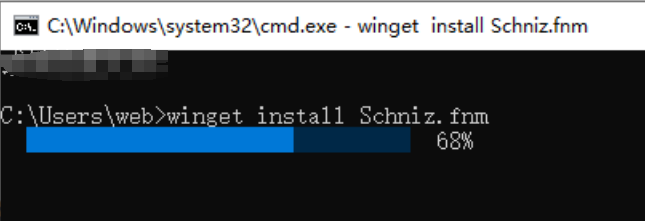
Using Scoop
Scoop is a popular command-line package manager on Windows:
# Install Scoop (if not already installed)
Set-ExecutionPolicy RemoteSigned -Scope CurrentUser
irm get.scoop.sh | iex

# Install fnm
scoop install fnm
Using Chocolatey
Chocolatey is a widely used package manager on Windows:
# Install Chocolatey (if not already installed)
Set-ExecutionPolicy Bypass -Scope Process -Force
[System.Net.ServicePointManager]::SecurityProtocol = [System.Net.ServicePointManager]::SecurityProtocol -bor 3072
iex ((New-Object System.Net.WebClient).DownloadString('https://community.chocolatey.org/install.ps1'))

# Install fnm
choco install fnm
Using Installation Script
In Git Bash or WSL:
curl -fsSL https://fnm.vercel.app/install | bashManual Download
- Visit fnm Releases page
- Download
fnm-windows.zip - Extract to target directory
- Add the extracted directory to system PATH
Configure PowerShell
After installation, you need to configure the PowerShell environment.
Automatic Configuration
Run the following command to add fnm configuration to PowerShell profile:
# Create profile (if it doesn't exist)
if (!(Test-Path -Path $PROFILE)) {
    New-Item -ItemType File -Path $PROFILE -Force
}

# Add fnm configuration
Add-Content -Path $PROFILE -Value 'fnm env --use-on-cd | Out-String | Invoke-Expression'

# Reload configuration
. $PROFILE
Manual Configuration
- Open PowerShell profile:
notepad $PROFILE- Add the following content:
fnm env --use-on-cd | Out-String | Invoke-Expression- Save and reload:
. $PROFILEConfigure VS Code
If you use VS Code, you need to configure the integrated terminal:
- Open Settings (
Ctrl + ,) - Search for
terminal.integrated.profiles.windows - Add or modify PowerShell configuration:
{
  "terminal.integrated.profiles.windows": {
    "PowerShell": {
      "source": "PowerShell",
      "args": ["-NoLogo"]
    }
  }
}
Using Mirror in China
In mainland China, it's recommended to configure a mirror to accelerate downloads:
# Set environment variable
[Environment]::SetEnvironmentVariable("FNM_NODE_DIST_MIRROR", "https://npmmirror.com/mirrors/node", "User")

# Or add to PowerShell profile
$env:FNM_NODE_DIST_MIRROR = "https://npmmirror.com/mirrors/node"
fnm env --use-on-cd | Out-String | Invoke-Expression
Verify Installation
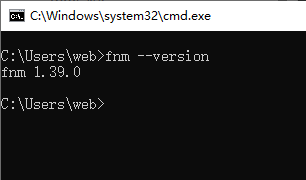
# Check fnm version
fnm --version

# Install Node.js
fnm install --lts

# Verify Node.js
node --version
npm --version
Shell Completion
Enable PowerShell command completion:
# Add completion script to profile
fnm completions --shell powershell | Out-String | Add-Content $PROFILE

# Reload configuration
. $PROFILE
Common Issues
Command Not Found
If fnm command is not found after installation:
- Confirm fnm is added to PATH
- Reopen PowerShell window
- Check installation path:
where.exe fnmExecution Policy Error
If you encounter execution policy error:
# Allow running scripts
Set-ExecutionPolicy RemoteSigned -Scope CurrentUser
Environment Variables Not Taking Effect
Ensure PowerShell profile is loaded correctly:
# Check profile path
$PROFILE

# Check profile content
Get-Content $PROFILE

# Manually reload
. $PROFILE
Using fnm in WSL
If you use fnm in WSL:
# Install in WSL
curl -fsSL https://fnm.vercel.app/install | bash

# Configure Bash
echo 'eval "$(fnm env --use-on-cd)"' >> ~/.bashrc
source ~/.bashrc
Next Steps
After installation, you can:
- Install Node.js - Use fnm to install Node.js
- Command Reference - Learn all available commands
- Version Management - Learn version management
Related Links
- Install fnm - General installation guide
- macOS Installation - macOS installation guide
- Linux Installation - Linux installation guide