
تثبيت fnm على Windows
يوفر fnm طرق تثبيت متعددة على Windows. سيوضح هذا الدليل كيفية اختيار الأنسب لك.
طرق التثبيت
باستخدام winget (موصى به)
winget هو مدير الحزم المدمج في Windows 11 و Windows 10 (1809+):
powershell
winget install Schniz.fnm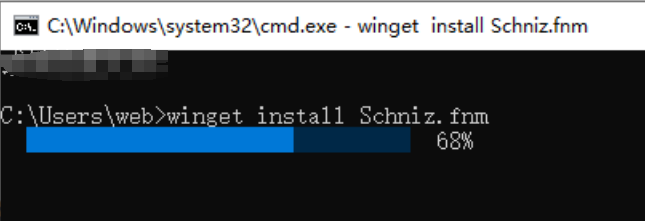
باستخدام Scoop
Scoop هو مدير حزم سطر أوامر شائع على Windows:
powershell
# Install Scoop (if not already installed)
Set-ExecutionPolicy RemoteSigned -Scope CurrentUser
irm get.scoop.sh | iex

# Install fnm
scoop install fnm
باستخدام Chocolatey
Chocolatey هو مدير حزم مستخدم على نطاق واسع على Windows:
powershell
# Install Chocolatey (if not already installed)
Set-ExecutionPolicy Bypass -Scope Process -Force
[System.Net.ServicePointManager]::SecurityProtocol = [System.Net.ServicePointManager]::SecurityProtocol -bor 3072
iex ((New-Object System.Net.WebClient).DownloadString('https://community.chocolatey.org/install.ps1'))

# Install fnm
choco install fnm
باستخدام سكريبت التثبيت
في Git Bash أو WSL:
bash
curl -fsSL https://fnm.vercel.app/install | bashالتنزيل اليدوي
- قم بزيارة صفحة إصدارات fnm
- قم بتنزيل
fnm-windows.zip - قم باستخراج إلى الدليل المستهدف
- أضف الدليل المستخرج إلى PATH النظام
تكوين PowerShell
بعد التثبيت، تحتاج إلى تكوين بيئة PowerShell.
التكوين التلقائي
قم بتشغيل الأمر التالي لإضافة تكوين fnm إلى ملف PowerShell الشخصي:
powershell
# Create profile (if it doesn't exist)
if (!(Test-Path -Path $PROFILE)) {
    New-Item -ItemType File -Path $PROFILE -Force
}

# Add fnm configuration
Add-Content -Path $PROFILE -Value 'fnm env --use-on-cd | Out-String | Invoke-Expression'

# Reload configuration
. $PROFILE
التكوين اليدوي
- افتح الملف الشخصي لـ PowerShell:
powershell
notepad $PROFILE- أضف المحتوى التالي:
powershell
fnm env --use-on-cd | Out-String | Invoke-Expression- احفظ وأعد التحميل:
powershell
. $PROFILEتكوين VS Code
إذا كنت تستخدم VS Code، تحتاج إلى تكوين الطرفية المتكاملة:
- افتح الإعدادات (
Ctrl + ,) - ابحث عن
terminal.integrated.profiles.windows - أضف أو عدل تكوين PowerShell:
json
{
  "terminal.integrated.profiles.windows": {
    "PowerShell": {
      "source": "PowerShell",
      "args": ["-NoLogo"]
    }
  }
}
استخدام مرآة في الصين
في البر الرئيسي للصين، يُوصى بتكوين مرآة لتسريع التنزيلات:
powershell
# Set environment variable
[Environment]::SetEnvironmentVariable("FNM_NODE_DIST_MIRROR", "https://npmmirror.com/mirrors/node", "User")

# Or add to PowerShell profile
$env:FNM_NODE_DIST_MIRROR = "https://npmmirror.com/mirrors/node"
fnm env --use-on-cd | Out-String | Invoke-Expression
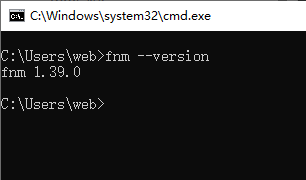
التحقق من التثبيت
powershell
# Check fnm version
fnm --version

# Install Node.js
fnm install --lts

# Verify Node.js
node --version
npm --version
اكتمال الصدفة
قم بتمكين اكتمال أوامر PowerShell:
powershell
# Add completion script to profile
fnm completions --shell powershell | Out-String | Add-Content $PROFILE

# Reload configuration
. $PROFILE
المشكلات الشائعة
الأمر غير موجود
إذا لم يتم العثور على أمر fnm بعد التثبيت:
- تأكد من إضافة fnm إلى PATH
- أعد فتح نافذة PowerShell
- تحقق من مسار التثبيت:
powershell
where.exe fnmخطأ سياسة التنفيذ
إذا واجهت خطأ سياسة التنفيذ:
powershell
# Allow running scripts
Set-ExecutionPolicy RemoteSigned -Scope CurrentUser
متغيرات البيئة لا تأخذ مفعولها
تأكد من تحميل الملف الشخصي لـ PowerShell بشكل صحيح:
powershell
# Check profile path
$PROFILE

# Check profile content
Get-Content $PROFILE

# Manually reload
. $PROFILE
استخدام fnm في WSL
إذا كنت تستخدم fnm في WSL:
bash
# Install in WSL
curl -fsSL https://fnm.vercel.app/install | bash

# Configure Bash
echo 'eval "$(fnm env --use-on-cd)"' >> ~/.bashrc
source ~/.bashrc
الخطوات التالية
بعد التثبيت، يمكنك:
- تثبيت Node.js - استخدم fnm لتثبيت Node.js
- مرجع الأوامر - تعرف على جميع الأوامر المتاحة
- إدارة الإصدارات - تعرف على إدارة الإصدارات
روابط ذات صلة
- تثبيت fnm - دليل التثبيت العام
- تثبيت macOS - دليل تثبيت macOS
- تثبيت Linux - دليل تثبيت Linux